Table of Contents
Most law firms have an email problem they don’t fully recognize until something goes wrong. Email gets sent, received, and replied to, then scattered across individual inboxes, never connected to the matters it belongs to.
When someone leaves the firm, that history leaves with them. When a client calls with a question, finding the right thread takes longer than it should. When a dispute arises, the record is incomplete.
The root cause is almost always the same: email is captured in Outlook but never actually filed anywhere. Fixing it comes down to email management for law firms that treats every message as part of the matter, not a loose copy in someone’s inbox.
This article explains how matter-centric email filing works, how a DMS with a native Outlook add-in makes it practical, and how to choose the right approach for your firm’s size and risk exposure.
The Problem With Using Outlook as Your Filing System
Outlook is excellent at what it was designed to do: send, receive, and organize email. It was not designed to manage a law firm’s client communications as a system of record.
That distinction matters more than most firms realize:
When email stays in Outlook, sorted into folders, sitting in individual inboxes, organized by whoever created the folder structure, it belongs to that person, not to the matter.
If an attorney leaves, their inbox goes with them. If a paralegal needs context on a client conversation they weren’t part of, they have no way to get it. If a client calls and the attorney is out, whoever picks up the phone is starting from zero.
Watch · 6 min
What happens to a departing attorney's client email
The four things that usually happen to the inbox when an attorney leaves, why each one loses the story of the matter, and the filing habit that makes a departure a non-event.

| What Outlook Does Well | Where It Falls Short |
|---|---|
| Sending and receiving email | No matter-based filing structure |
| Personal inbox organization | Email stays siloed in individual inboxes |
| Email search within your own mailbox | No shared visibility across the firm |
| Calendar and contact management | No way to retrieve a full matter communication history |
| Flagging and follow-up reminders | No audit trail for client communications |
| Integration with Microsoft 365 tools | Email is lost when an attorney leaves the firm |
The visibility problem compounds over time.
A folder structure that makes sense to one person rarely makes sense to another. Search in Outlook is limited to what’s in your own mailbox. There’s no shared view of a matter’s full communication history, no way to confirm what was said, and no reliable way to retrieve it under pressure.
The compliance risk is real and underappreciated.
Emails that live only in personal inboxes, unfiled, unstructured, and inaccessible to firm leadership, create exposure on multiple fronts:
The goal isn’t inbox zero. The real goal is information integrity.
Inbox zero is a personal productivity metric. Information integrity is a firm-wide standard.
Outlook was built for one, not the other.
What Matter-Centric Email Filing Actually Means
Matter-centric email filing means attaching an email to a specific client matter, not dropping it into a folder you created and hope others understand.
The difference sounds subtle. It isn’t.
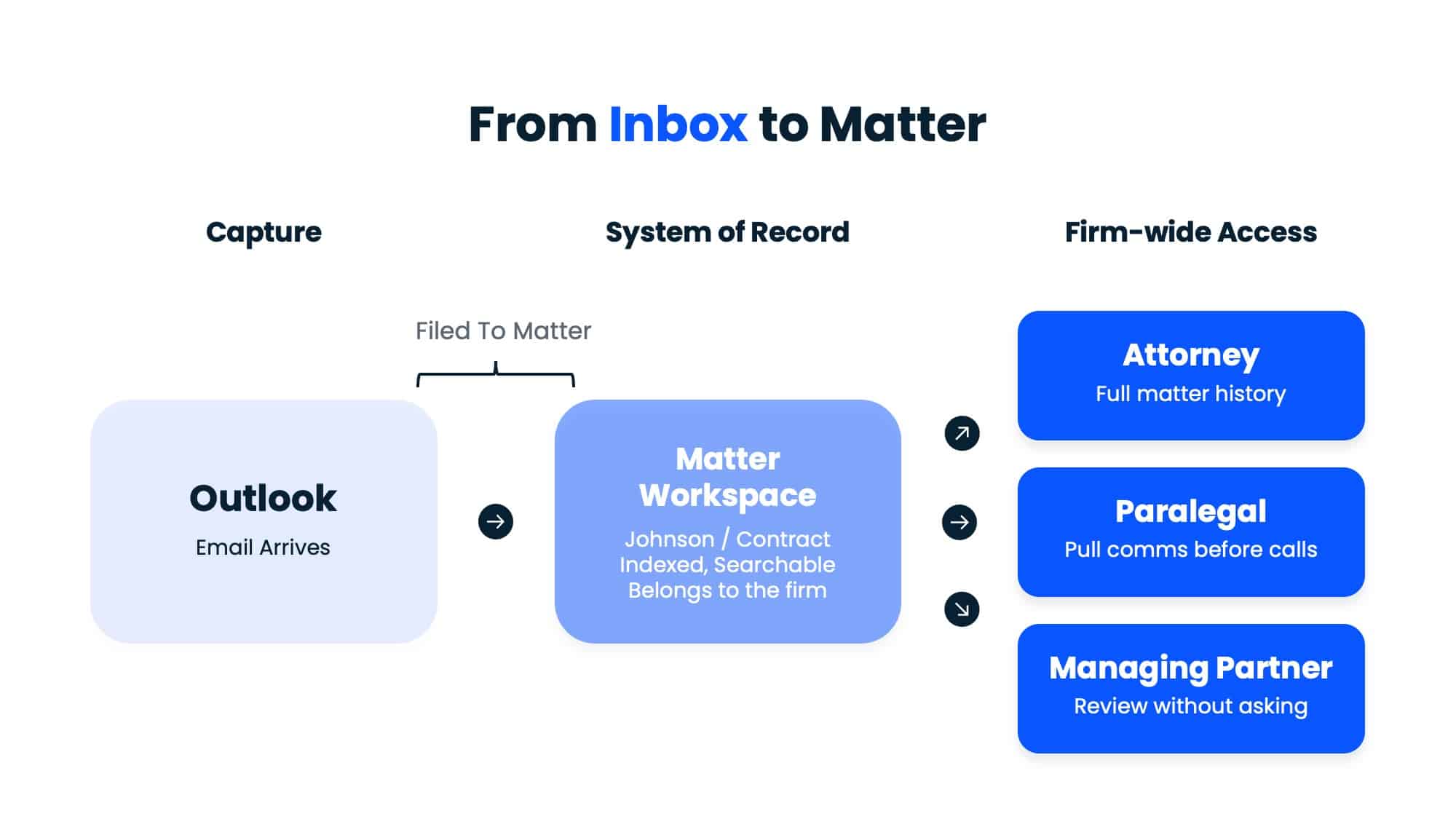
When you organize email in Outlook, you’re organizing it for yourself. You create a folder called “Johnson / Contract Dispute” and move emails into it.
That structure lives in your mailbox and makes sense to you. It means nothing to the attorney who joins six months later, the paralegal pulling documents, or the managing partner reviewing a closed file.
Matter-centric filing works differently.
Each email is linked to a defined matter record — a structured workspace that belongs to the firm, not to an individual. Anyone with access to that matter can see the full communication history, regardless of who sent or received the emails.
The practical result is significant.
When email is filed to a matter correctly, the firm can:
When a client disputes what they were told, when a regulator asks for a communication record, or when a departing attorney’s files need to be transferred, matter-centric filing provides a complete and defensible record. Outlook folders do not.
The mental model to hold onto:
Outlook is where email arrives. A matter is where it belongs.

AI for Legal Documents
AI can already read contracts, surface key clauses, and compare versions faster than any human. The hard part is telling which tools are built for legal work and which just sound impressive.
The Spectrum of Email Filing Approaches: From Manual to Purpose-Built
Not every law firm needs the same solution. But every law firm needs something more structured than an unmanaged inbox. The approaches below range from the simplest to the most capable, with honest tradeoffs for each.
Manual Outlook folders
This is where most firms start. An attorney creates a folder for each client or matter, drags emails into it, and calls it a filing system.
It works at small scale, for a single user, on a simple matter load. The attorney knows where everything is because they put it there.
The problems start quickly:
Manual Outlook folders are a starting point, not a system.
Saving Emails as PDFs or EML/MSG files
Some firms take a more deliberate approach: exporting emails and saving them as files — either as PDFs, EML files, or MSG files — into a shared folder structure or network drive.
The intent is sound. The execution creates new problems.
PDFs strip threading and metadata, while EML and MSG files are only reliably opened in specific email clients. Neither format integrates naturally into a searchable matter workspace. The manual export step adds friction to every filing decision, which means attorneys skip it when they’re busy — which is most of the time.
This approach also doesn’t solve the visibility problem. Files saved to a shared drive are only as organized as the folder structure they live in — with extra steps added.
Practice Management Software
Tools like Clio, Smokeball, and MyCase include email management features, and for some firms they’re sufficient.
Smokeball, in particular, auto-captures emails associated with a matter based on contact records, a genuinely useful capability for firms already running their practice on that platform.
The limitation is scope. Practice management software is built around billing, tasks, calendars, and client intake. Email is one feature among many, not the core focus.
A Purpose-Built DMS with an Outlook Add-In
This is the most capable approach, and the one that addresses the full range of problems the previous methods leave unsolved.
A document management system built for law firms treats email as a first-class record alongside documents. Email is filed to a matter directly from Outlook, indexed immediately for full-text search, visible to everyone with matter access, and stored with a complete audit trail.
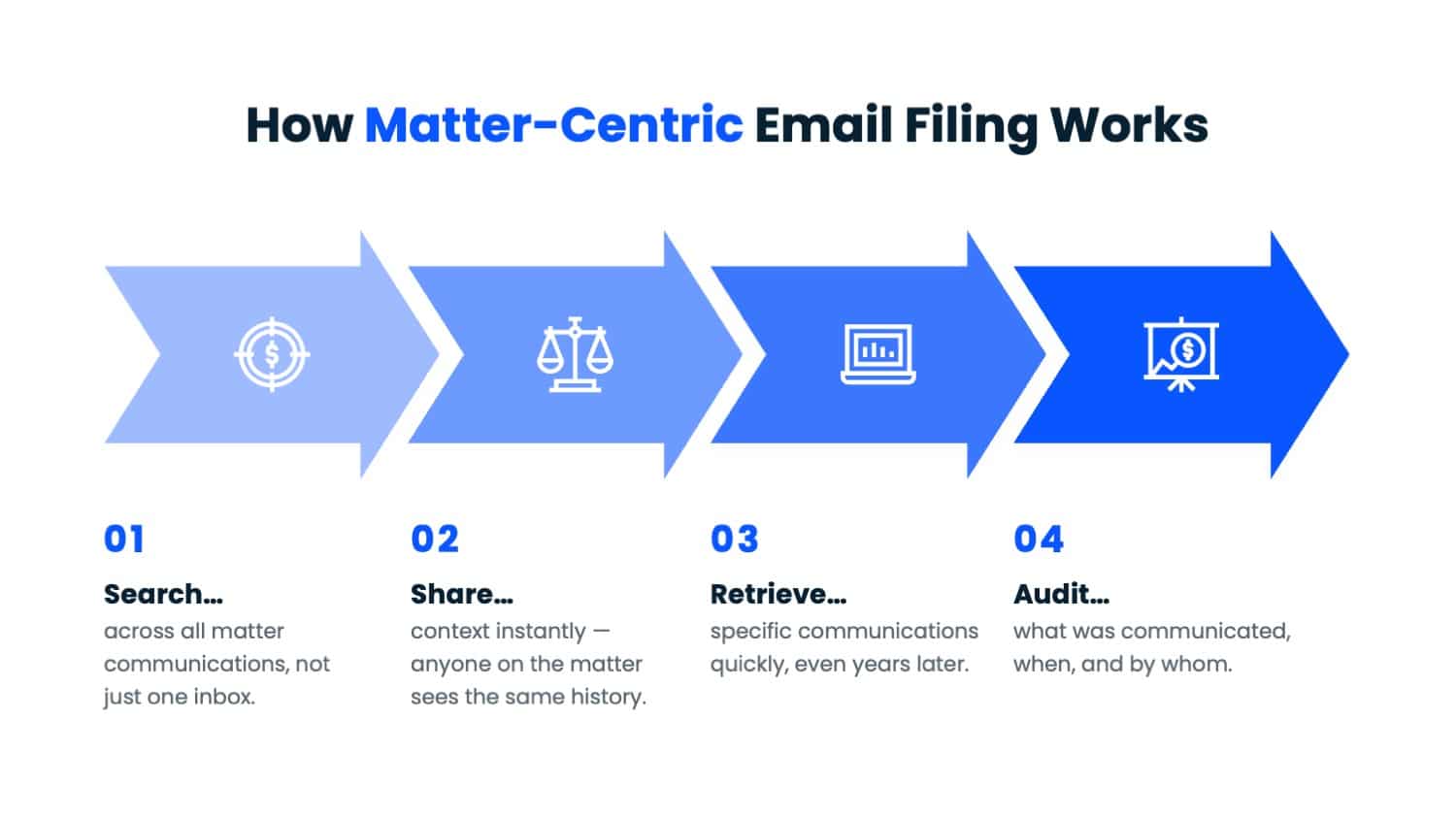
The Outlook workflow stays intact. The filing happens in the background.
The tradeoff is real: a purpose-built DMS requires more setup, more training, and more budget than a folder structure or a practice management add-on.
For firms with multiple attorneys, active matter loads, and any meaningful compliance exposure, it usually is.
At a glance: which approach fits your firm
| Approach | Works Well When | Breaks Down When |
|---|---|---|
| Manual Outlook folders | Solo attorney, simple practice, low matter volume | Multiple users share matters, or an attorney leaves |
| PDF / EML / MSG export | Firm wants a paper trail and volume is low | Filing frequency increases and search becomes necessary |
| Practice management software | PM tool is already the firm’s operational hub | Email volume is high or search depth and access controls matter |
| Purpose-built DMS + Outlook add-in | Multiple attorneys, active matters, compliance exposure | Budget is genuinely prohibitive at the smallest firm sizes |
How Outlook Email Filing Works With a DMS Add-In
The most practical solution to the Outlook filing problem is an add-in, a lightweight tool that installs directly into Outlook and connects it to your document management system (DMS). Attorneys never leave Outlook. They just gain the ability to file from inside it.
Here’s what that looks like in practice, using LexWorkplace as the example, a cloud-based DMS built specifically for law firms with a native Outlook add-in.
What the Add-In Does
The LexWorkplace Outlook add-in adds a sidebar panel and a button to your Outlook ribbon.
When you’re ready to file an email, those controls are already there. No switching applications, no copy-pasting, no downloading and re-uploading. The add-in surfaces your matter list directly inside Outlook and handles the filing from there.
One additional detail worth noting: once an email is filed, the add-in labels it “Saved to LexWorkplace,” a small but useful visual cue that tells anyone looking at the inbox whether that email has been captured in the system or not.
What the Filing Workflow Looks Like, Step by Step
The video below shows the full filing process in LexWorkplace — from selecting an email in Outlook to saving it to a matter in under a minute.
In short, the workflow is:
- Select the email you want to file in Outlook
- Click the add-in button in your Outlook ribbon
- Browse to the correct matter — or search for it by name or number
- Choose a subfolder within the matter if needed (Correspondence, Discovery, etc.)
- Click Save
The email is filed. It now lives in the matter’s email tab in the DMS, indexed and searchable, visible to everyone with access to that matter. The original stays in Outlook. Nothing is deleted, moved, or disrupted.
Sent emails work the same way. Filing isn’t limited to what lands in your inbox — outbound communications can be captured to the matter just as easily.
How Predictive Filing Works
Better DMS systems don’t make attorneys start from scratch every time. They use prior filing behavior — sender address, email domain, subject patterns, and matter history — to suggest the most likely matter automatically. The attorney confirms or adjusts.
Either way, the decision takes seconds instead of requiring a manual search through an active matter list.
For high-volume matters and recurring client relationships, accuracy improves as filing history builds.
Multi-Select Filing and Deduplication
Attorneys don’t always file emails one at a time. Most systems support selecting multiple emails and filing them to the same matter in a single action — useful when catching up after a busy day or onboarding a backlog of communications.
Deduplication handles the inevitable overlap. When more than one person has access to a shared inbox or is copied on the same thread, the same email can easily get filed twice.
A proper DMS uses a checksum method to detect exact duplicates and flags them before they’re saved — keeping the matter record clean without requiring manual review.
One scenario that requires a judgment call: emails that genuinely relate to more than one matter.
Most systems let you file a copy to each relevant matter. That’s usually the right answer. What doesn’t work is leaving the email unfiled because the decision feels complicated.
The Principle Behind All of This
Outlook is the right place to capture email. It is not the right place to store it.
As LexWorkplace CEO Dennis Dimka puts it: “Outlook email filing works best for law firms when Outlook is the capture point, not the permanent system of record.”
The add-in is what makes that division of responsibility practical. Outlook stays familiar. The DMS becomes the system attorneys can actually rely on.
What Happens After the Email Is Filed
Filing the email is the action. What comes after is the point.
Most firms think about email management as an organizational problem — a way to keep inboxes cleaner and folders more logical. That framing undersells what a proper filing system actually delivers.
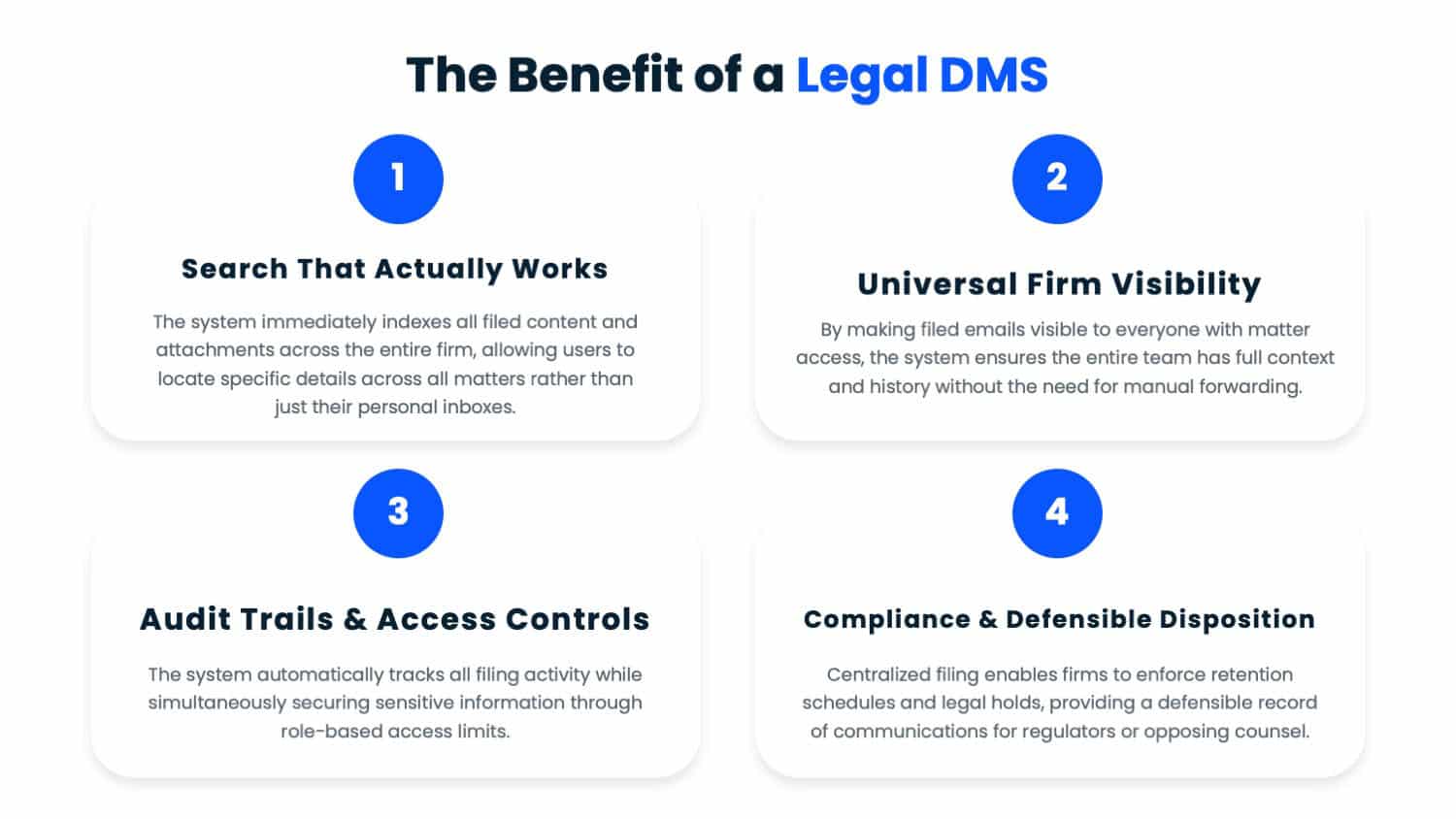
The real value is in what the firm can do with those communications once they’re in the right place.
Search That Actually Works
When email is filed to a matter in a DMS, it’s indexed immediately. That means the full content of every filed communication, not just the subject line, but the body, the sender, the date, the attachments, is searchable across the entire firm.
If an attorney needs to find every email related to a specific contract clause, a particular opposing counsel, or a date range around a key event, the search returns results across all matters and all users. That’s categorically different from searching your own Outlook inbox and hoping the email you need is in there.
Visibility Across the Firm
Email filed to a matter is visible to everyone with access to that matter. Not just the attorney who sent or received it, the whole team.
That shared visibility changes how a firm operates:
Audit Trail and Access Controls
A DMS maintains a record of who filed what, when, and where. That audit trail is available without anyone having to reconstruct it manually.
Access controls work alongside this. Not every user needs access to every matter. A properly configured DMS limits visibility by matter, by role, or by practice group — so sensitive communications stay contained without relying on individual attorneys to manage that themselves.
Retention, Holds, and Defensible Disposition
Law firms have retention obligations, covered in depth in our guide to email retention and archiving for law firms. How long client communications must be kept, when they can be destroyed, and how that process is documented varies by jurisdiction and matter type, but the obligation exists regardless.
Email scattered across personal Outlook inboxes is almost impossible to manage against a retention schedule.
Email filed to a matter in a DMS can be.
That’s what filing is really for.
The Adoption Problem and How to Solve It
The technology side of email filing is a solved problem. The human side is where most implementations actually fail.
Attorneys resist email filing for predictable reasons.
It adds a step to a workflow that already feels too long. The immediate personal benefit isn’t obvious — filing an email helps the firm, but the attorney doing the filing doesn’t always feel that directly. And in a profession where time is measured in six-minute increments, anything that slows down the workday gets cut.
Blaming attorneys for this doesn’t help. If filing is genuinely inconvenient, people will avoid it.
What Makes a Filing Workflow Stick
The single biggest predictor of adoption is friction. If filing an email takes more than a few clicks, it won’t happen consistently, regardless of how well-intentioned the rollout was.
This is why the Outlook add-in approach matters beyond just technical capability. Filing from inside Outlook, without switching applications or re-locating emails manually, is fast enough to become a habit. Filing that requires exporting, re-uploading, or navigating a separate system is not.
Speed matters too. If the add-in is slow to load or the matter search is clunky, attorneys will abandon it mid-task. The workflow has to be faster than the alternative, which, for most attorneys, is doing nothing.
SOPs, Training, and the Role of Leadership
A filing system without a written policy is just a suggestion. Firms that achieve consistent adoption treat email filing as an operational standard, not a preference.
That means:
None of that works if firm leadership doesn’t participate. Attorneys watch what partners do more than they follow what administrators say. If managing partners file their own emails consistently and visibly, the behavior signals that this is how the firm operates. If they don’t, no policy will compensate.
Measuring Filing Compliance
What gets measured gets managed. Firms serious about adoption track it.
Useful metrics include:
Most purpose-built DMS platforms surface some version of this data. Even informal tracking, a monthly review of filing activity by user, creates enough accountability to shift behavior over time.
The goal isn’t perfect compliance on day one. It’s a system that makes filing the path of least resistance, backed by expectations clear enough that skipping it is a visible choice rather than an invisible habit.
Choosing the Right Email Management Approach for Your Firm
The right email management system depends on your firm’s size, matter volume, and how much risk you’re carrying in your current setup. Here’s a direct breakdown.
Solo and Small Firms (2–10 Attorneys)
Smaller firms often assume a full DMS is something they’ll grow into eventually, a tool for larger, more complex practices. That assumption is worth questioning.
The filing problems that create real risk — lost communication history, no visibility across matters, gaps in the client record — aren’t problems that only appear at scale. They show up the first time an attorney leaves, the first time a client dispute requires a communication record, or the first time someone outside the original email thread needs context they can’t access.
A well-disciplined folder structure and a practice management tool can work at this size if the discipline is genuinely there. But for small firms handling litigation, transactional work, or any matter type where the communication record matters, a purpose-built system is worth evaluating sooner rather than later.
The cost and setup overhead at the small-firm tier is lower than most firms expect.
Midsize Firms (11–50 Attorneys)
At this size, the limitations of manual filing and practice management email features become operational problems, not just inconveniences.
Multiple attorneys working the same matters means email history is scattered across multiple inboxes by default.
Supervision becomes harder. Onboarding new attorneys onto active matters requires someone to manually brief them on communication history they can’t access themselves. And the compliance exposure grows with every person added to the firm.
This is where a purpose-built DMS earns its cost.
The filing workflow becomes consistent across the firm, not dependent on individual habits. Matter communication history is complete and accessible. And when something goes wrong — a dispute, a complaint, a departing attorney — the firm has a record it can actually rely on.
What to Look for In an Outlook-Integrated System
Not all DMS platforms handle email the same way. When evaluating options, the capabilities that matter most are:
Where LexWorkplace Fits
LexWorkplace is a cloud-based document and email management platform built specifically for small and midsize law firms — the 2–50 attorney market that needs a professional-grade system without enterprise complexity or enterprise pricing.
It’s matter-centric by design. Documents and email live in the same matter workspace, so the full record of every active and closed matter — communications and documents together — is accessible to everyone who needs it.
The native Outlook add-in handles filing, deduplication, and full-text indexing without requiring attorneys to change how they work.
For firms that have outgrown folder-based filing and want a system their whole team can actually rely on, it’s built for exactly that.
Is Your Email System Actually Working?
Email filing isn’t a feature. It’s a foundation for search, visibility, compliance, and continuity across every matter the firm handles.
The risks covered in this article don’t announce themselves.
A communication record that’s incomplete doesn’t fail visibly until an attorney leaves and takes the history with them, until a client dispute requires documentation you can’t produce, until someone asks what was said and no one can say for certain.
If you’re not confident your current setup would hold up in any of those situations, that’s worth knowing now.
WHAT’S NEXT