Table of Contents
You know the email exists.
Maybe it included a client approval. Maybe opposing counsel sent a PDF attachment with the settlement number. Maybe a colleague forwarded the final version of a draft agreement months ago.
The information is somewhere. Finding it is the problem.
That search starts in Outlook because that’s where the email lives, and that’s where the problem starts. Then it moves to a shared mailbox, a colleague’s inbox, a saved PDF folder, a document system, or a shared drive.
A legal document management system is built to avoid these problems. Here’s how search works in a proper system designed for law firms.
What Law Firms Really Need From Email Search
When someone in a law firm searches email, they’re usually trying to answer a matter-specific question.
They may be looking for the client’s approval of a change, a settlement number buried in an attachment, or the version of a document sent to opposing counsel. They might need a deadline mentioned in a thread, a colleague’s communication with the client, or the email that explains why a document changed.
That’s different from simply finding one message.
A law firm often needs to reconstruct part of the matter’s history. The person searching may remember the matter, sender, or general issue, but not the exact subject line or file format.
That’s where ordinary email search starts to feel incomplete.
Microsoft WorkLab’s 2025 report found that the average worker receives 117 emails daily. For law firms, that volume matters because email often contains client instructions, approvals, negotiation history, attachments, and matter context that people need later.
Email Search Is Usually Matter Search
In a law firm, people rarely search email just to find a message. They search email because they need to understand what happened in a matter.
That context may be spread across people and formats.
A partner may receive the client approval. An associate may send the revised draft. A paralegal may download the attachment. Opposing counsel may reply in a long thread. The final document may be saved somewhere else.
A few months later, someone needs to confirm what happened.
That’s why the format matters less than the relationship between the information. A client instruction, revised contract, filed pleading, email attachment, or approval thread may all be part of the same question.
If the firm’s search process depends on everyone remembering where each piece went, the matter record becomes fragile, which is the problem email management for law firms is meant to solve. It relies on personal inbox habits, folder discipline, memory, and luck.
The search need is tied to the matter, but the information is often scattered across inboxes, attachments, and document storage.
Why Outlook Search Falls Short for Matter Retrieval
Outlook is a strong communication tool. Lawyers and staff use it because it works well for sending, reading, replying, calendaring, and managing individual messages.
The problem starts when Outlook becomes the firm’s default matter search system.
Outlook can help a user search their own mailbox by sender, keyword, date, folder, and other email-specific criteria. For many individual tasks, that’s useful.
Law firms need matter retrieval: the ability to find the relevant emails, documents, attachments, and context tied to a client or matter. That is a different job than searching one person’s mailbox.
Outlook Searches Mailboxes, Not Matter Records
Outlook search is organized around mailboxes, folders, and search scope.
A client matter may involve multiple attorneys, paralegals, assistants, outside parties, and document versions. Important information may sit in a partner’s inbox, an associate’s sent folder, a shared mailbox, a saved PDF, or a document folder.
Outlook does not automatically understand that all of those items belong to the same matter.
So even when Outlook search works as designed, it may still answer only part of the firm’s real question.
Even a Well-Organized Outlook Inbox Is Still Mailbox-Based
Some lawyers are extremely organized in Outlook. They may have folders by client, subfolders by matter, color categories, rules, flags, and personal naming conventions.
That can help the individual user, but it does not turn Outlook into a shared matter search system.
Because Outlook is mailbox-based, even a well-organized inbox may still be invisible to everyone else working on the matter. Other attorneys or staff may not have access, may not understand that person’s folder structure, or may not know the email exists at all.
That is the architectural limitation for law firms: Outlook can organize one person’s email, but it does not automatically create a searchable matter record for the team.

How Outlook Email Filing Works for Law Firms
Most law firms capture email in Outlook. Far fewer have a system for actually filing it. Here’s what matter-centric email filing looks like, and how to get it right.
Outlook Search Has Practical Results and Indexing Limits
Outlook search can also be limited by the way results are displayed, indexed, and synced.
For example, Microsoft says classic Outlook displays 250 search results by default unless the user changes the setting to show all results. Microsoft also notes that Outlook search may return incomplete results or fail to find older emails when offline/sync settings do not include enough past email.
Attachment search has its own limitations. Outlook may help find emails with attachments, and classic Outlook relies on Windows Search indexing for local search behavior. But that is different from a legal DMS that OCRs, indexes, and searches filed matter documents and attachments as part of the same record.
That distinction matters in a law firm. If the key settlement number is inside a scanned PDF attached to a vague email thread, the firm needs more than mailbox search. It needs search that can read the content, associate it with the matter, and return it with the related email and documents.
Outlook Doesn’t Search Email and Documents Together
The bigger issue is structural.
Outlook searches one mailbox at a time. The firm’s full matter record spans emails, attachments, documents, scanned PDFs, notes, and metadata, none of which Outlook searches together.
That means a lawyer may find the email but miss the filed document. Or they may find the document but miss the email that explains why it changed.
When email and documents are searched separately, the matter story comes back in pieces.
Outlook Search Vs. Legal DMS Search
| Search Need | Outlook Search | Legal DMS Search |
|---|---|---|
| Search one user’s inbox | Strong for individual mailbox search | Available when filed email is part of the matter |
| Search the full matter record | Limited | Strong |
| Search across emails and documents together | No | Yes |
| Search within a specific matter | No native matter context | Yes |
| Search scanned PDFs with OCR | Limited or inconsistent | Yes, when OCR-indexed |
| Search after an attorney leaves | Risky if email stayed in the inbox | Preserved when filed to the matter |
| Filter by matter, sender, date, or document type | Partial | Stronger and matter-aware |
The Fragmented Search Problem
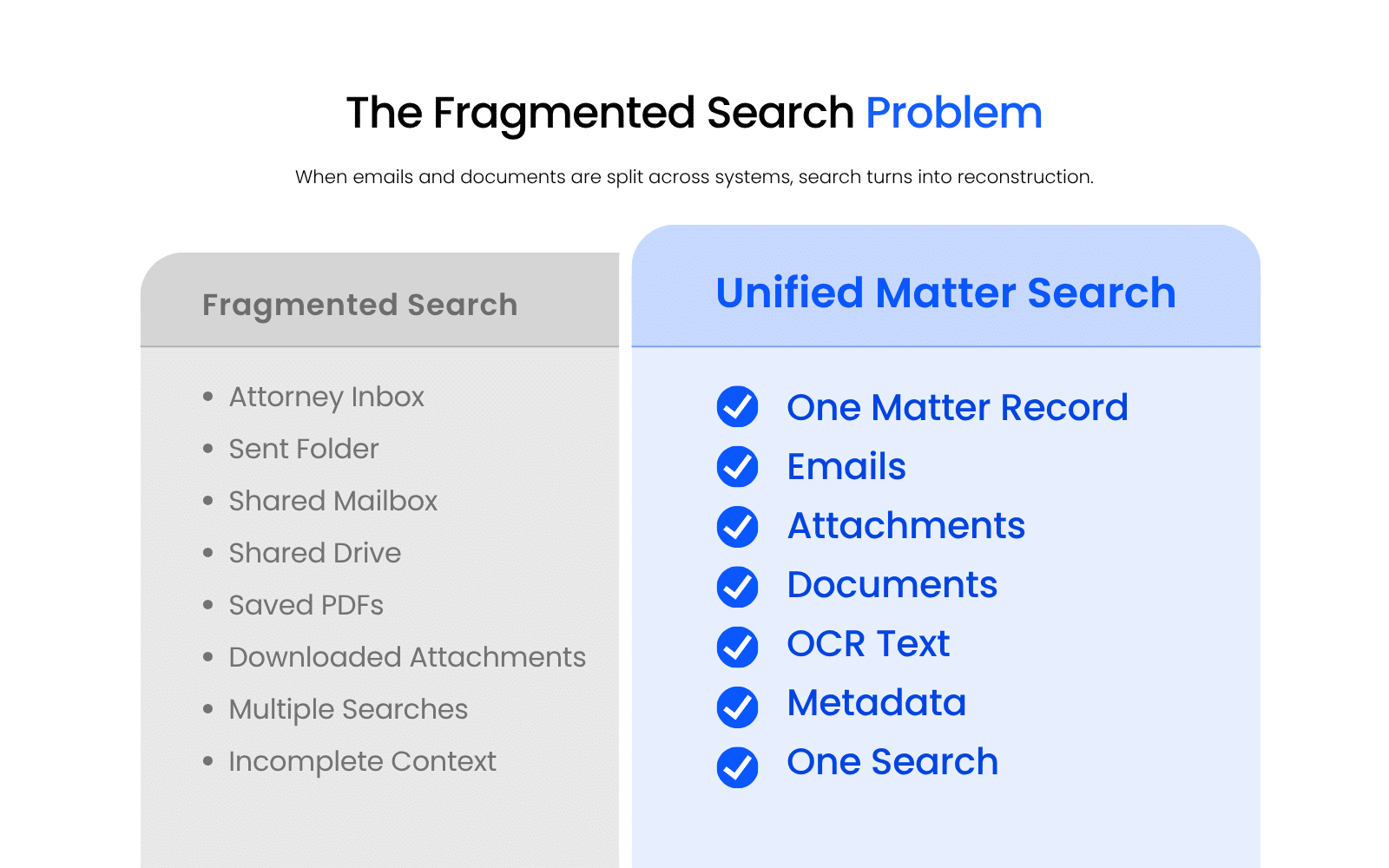
Fragmented search occurs when law firm emails, attachments, and documents live in separate systems, forcing the team to search multiple places to reconstruct the full history of a matter.
This is the real issue behind a lot of email search frustration.
A firm may think it has search because every system has a search bar. Outlook has search. The shared drive has search. The document system has search. Maybe the practice management system has search too.
But if the firm has to search each place separately, the matter record is still fragmented.
How Fragmented Search Happens
Fragmented search usually develops gradually.
A firm starts with Outlook because everyone already uses it. Documents go into a shared drive, a cloud folder, or a document system. Some attachments get downloaded to local folders. Some emails get saved as PDFs. Some communications remain in sent folders. Some messages live in shared mailboxes. Some critical details stay inside one person’s inbox.
No one planned for the matter record to become scattered.
It just happened through daily work.
A client emails approval of a contract change. A paralegal downloads the attachment. An associate saves a revised draft to the document folder. The partner forwards the final version to opposing counsel.
Weeks later, someone needs to confirm what was approved, when it was approved, and which version was sent.
Now the search begins.
One person checks Outlook. Another checks the shared drive. Someone else searches PDFs. A fourth person asks, “Who had that email?”
That’s fragmented search in real life.
Why Fragmented Search Costs More Than Time
The obvious cost is wasted time.
The deeper cost is missing context.
A firm might find the attachment but miss the email that explains it. It might find the document but miss the negotiation thread. It might find the final version but miss the client approval that authorized the change.
That can slow down work, weaken handoffs, and make it harder for the team to understand the full matter history.
As Dennis puts it, when documents and email live in separate places, finding anything means searching both. The firm is not just searching for information. It is trying to rebuild the relationship between pieces of information that should have stayed connected.
That’s especially true in legal work.
An email may explain why a draft changed. An attachment may contain the substantive language. A thread may show who approved it. A document may show the final work product. Metadata may show sender, date, matter, and document type.
When those pieces are split across systems, the firm has to stitch the matter back together manually.
The Real Problem Is The Matter Is Split Across Systems
Fragmented search is an operational design problem.
If the matter is split across Outlook, shared drives, folders, saved PDFs, and individual inboxes, the search process has to reconstruct the matter before the lawyer can use it.
The matter record should already preserve the relationship between emails, attachments, documents, and context. The search tool should help the team find that record, not force them to rebuild it every time something important is needed.
When the matter is split across systems, the search has to rebuild the matter before the lawyer can use it.
How Email Search Works In A Legal DMS
Email search in a legal document management system works by bringing matter-related emails, attachments, and documents into the same organized matter record.
Once those items are saved, indexed, and organized by matter, the system can search across them together.
That’s the key difference.
The user doesn’t need to know whether the answer is in an email, an attachment, a scanned PDF, or a Word document. The search should help surface the relevant matter information regardless of format.
The user should not have to know where the answer lives before the search can find it.
Unified Search Across Emails, Documents, And Attachments
Unified search means the firm can search emails, documents, and attachments from one place.
That matters because attorneys do not always remember the format of the information they need. They may remember a phrase, a name, a number, or the general subject. They may not remember whether it appeared in an email, a pleading, a draft agreement, or an attachment.
A unified search experience reduces that guesswork.
Instead of searching Outlook, then the shared drive, then the document folder, the user searches the matter record.
Full-Text Search Finds What Is Inside The File
Full-text search means the system searches the content inside documents and emails, not just file names, subject lines, or folder labels.
That matters in law firms because file names rarely tell the whole story.
A document named “Agreement_Final_v7.pdf” may not reveal the clause someone needs. An email subject line like “Follow Up” may not reveal the settlement number inside the attachment. A scanned letter may contain a key date that never appears in the file name.
Full-text indexing helps users search for the content they actually remember.
OCR Makes Scanned PDFs Searchable
OCR, or optical character recognition, converts scanned or image-based text into searchable text.
Without OCR, a scanned PDF may be readable to a person but invisible to search. The firm may have the document, but the system may not be able to find the words inside it.
For law firms, that matters every day.
Scanned signed agreements, medical records, discovery materials, filed pleadings, and correspondence often contain information people need later. If those files are not OCR-indexed, the search experience will feel incomplete even when the files are technically stored.
A document that exists but cannot be searched is still hard to use.
Metadata Filters Help Narrow Large Result Sets
Search is not always about typing the perfect phrase.
Sometimes a user remembers the sender but not the wording. Or the approximate date but not the file name. Or the matter but not whether the item was an email, PDF, Word document, or note.
Metadata filters help narrow the search.
For example, a lawyer might search within a matter for emails from opposing counsel during March that include PDF attachments. That is much more useful than searching the entire firm for “settlement” and sorting through every result manually.
Good search should help the user move from vague memory to useful result.
Matter-Scoped Search Narrows The Results
Matter-scoped search means searching within a specific client or matter record instead of searching across an entire mailbox, drive, or document system.
That matters because law firms use repeated language across many matters. Terms like “settlement offer,” “draft agreement,” “client approval,” “signed release,” and “discovery response” may appear across dozens of files.
Searching across everything can create noise.
A firm-wide search for “settlement offer” may return unrelated matters, old negotiations, and documents that use the same phrase in different contexts. Searching “settlement offer” inside the Acme Corp v. Jones matter starts from the right context and returns the emails, attachments, documents, and notes tied to that matter.
The search starts from the matter instead of forcing the user to add that context manually.
Team Visibility Reduces Dependence On One Inbox
A legal DMS also changes who can search the information.
If an email only lives in one person’s inbox, the matter record depends on that person’s mailbox, folder habits, and availability. If the email is filed to the matter, the right people can find it later as part of the shared record.
That matters when teams are busy, people are out, or a matter changes hands.
It also matters when someone leaves the firm.
The matter record should not depend on one lawyer’s Outlook folders, memory, or availability.
That’s the model a purpose-built legal DMS is designed around.
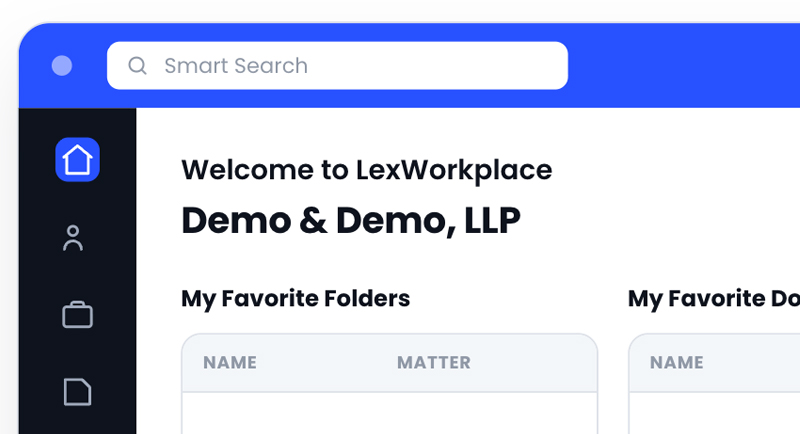
LexWorkplace is a cloud-based document management system built for law firms, with document and email management features that help firms keep content organized by matter and searchable by the team.
What Happens To Email Search When Attorneys Leave
Attorney departure creates a search issue that firms often underestimate.
If an associate handled daily client communication for two years, their inbox may contain a lot of matter history. Six months after they leave, a partner may need to confirm what the client approved, what opposing counsel sent, or which document version was circulated.
If those communications only lived in the associate’s Outlook account, the firm may have to search an archived mailbox, reactivate access, or dig through a folder structure no one else understands.
If those emails were filed to the matter, the team searches the matter record.
A matter should not become harder to search because the person who handled the email left the firm.
How LexWorkplace Smart Search Brings Email And Documents Together
LexWorkplace Smart Search indexes filed emails, attachments, documents, and OCR’d scanned files together, so they are scoped to the matter and searchable in a single query.
That means full-text search across email bodies and attachments, matter-scoped results filtered to a specific client or matter, OCR indexing for scanned PDFs, and metadata filtering by sender, date range, and document type. The search spans everything in the matter record without requiring the user to know where any of it lives.
LexWorkplace also keeps Outlook connected to the workflow. Attorneys and staff can continue using Outlook for communication, while matter-related email is saved, organized, and searched alongside the firm’s documents.
For firms that want more detail on the filing side of this workflow, the related article Outlook email filing for law firms explains how email moves from Outlook into the matter record.
Search From The Matter, Not From Memory
The strongest search systems reduce dependence on memory.
A lawyer should not have to remember whether a settlement number appeared in the email body or in the attachment. A paralegal should not have to remember whether a PDF was downloaded, saved to a folder, or left in Outlook. A partner should not have to ask three people who last saw the draft.
Search should start from the matter and surface the relevant content.
That is what search tied to the matter should do: make the record easier to use after the work has already happened.
Outlook Still Fits The Workflow
Outlook can remain where attorneys and staff send, receive, and respond to email. The difference is that matter-related email can be filed, organized, and searched inside the broader matter record.
That matters for adoption. A system that supports the way lawyers already work is more likely to be used consistently.
LexWorkplace’s email management features page explains how attorneys save email from Outlook directly into the matter, where it becomes part of the searchable record accessible to the whole team, regardless of who filed it or when.
WHAT’S NEXT