Table of Contents
You know the feeling. A client calls with a question, and you’re sure the answer’s in a document somewhere. So you dig through folders, ask a paralegal, and burn twenty minutes on something that should take ten.
That’s a search problem, and plenty of firms have it without knowing.
Most firms outgrow the way they organize and store their files long before they notice. The search still runs, but it just stops finding things.
Here’s what real document search does, how it works, and why the gap costs your firm more than time.
What Document Search Really Means in a Law Firm (and What It Doesn’t)
In a law firm, document search means finding your own matter documents by what’s inside them, not researching case law or pulling public court records. The phrase gets used three different ways, and the distinction matters before you can fix anything.
People usually mean one of these when they say “document search”:
This article is about the first one. It’s the search you run dozens of times a day to do the actual work, and it’s the one most firms quietly struggle with.
Good internal search is really about context: who the client is, what matter a document belongs to, and where it fits in the bigger picture. That context is what a flat folder of files can’t give you.
Document Search vs. Legal Research vs. Public-Records Search
Searching your firm’s own files is a different job from researching case law or pulling court records. Legal research tools answer “what does the law say?” Public-records databases answer “what’s been filed?” Internal document search answers “where’s the document we already have?” No Westlaw subscription will help you find a contract sitting in your own system.
Why File-Name Search Isn’t Document Search
Matching a file’s name tells you nothing about what’s inside it, which is where the information your firm actually needs lives. If you search “Smith” and your system only checks file names, you’ll miss the settlement agreement that mentions Smith on page nine but was saved as “final_revised_2.docx.” Real document search reads page nine, not just the label on the folder.
How Legal Document Search Actually Works
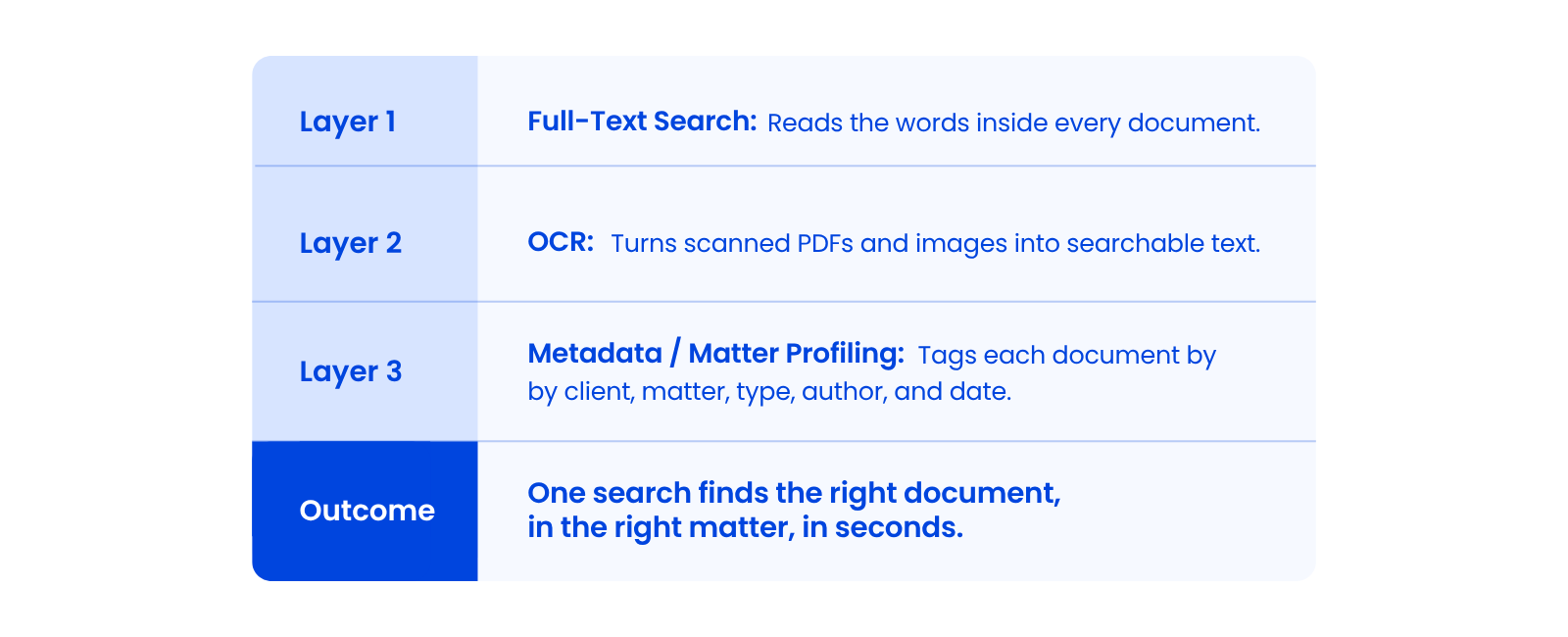
Legal document search works by combining three capabilities: full-text indexing that reads the words inside every document, OCR that converts scanned files into searchable text, and matter-based metadata that ties each document to a client and matter. Each one does a distinct job, and you need all three to reliably find things.
When Dennis Dimka talks to firms about what a document system has to get right, search sits at the top of the list.
Full-Text Search: Searching What’s Inside the Document
Full-text search reads the actual text of every document so you can find a file by a phrase, clause, or name it contains, not just its title. Type “indemnification” and you get every document where that word appears, regardless of how the file was named. This is the difference between searching a library by what’s printed in the books and searching it by the labels on the spines.
OCR: Making Scanned PDFs and Images Searchable
OCR converts scanned PDFs and images into searchable text, so a signed agreement you scanned in becomes as findable as one you typed. OCR stands for optical character recognition: software that reads the words in an image and turns them into text a computer can index. Without it, every scanned signature page, exhibit, and faxed document stays invisible to search.
Metadata and Matter Profiling: Search That Understands Context
Metadata tags each document by client, matter, type, author, and date, so search returns results in the context of the work instead of a flat list of file names. Profiling a document this way means you can filter to “every motion in the Henderson matter from this year” without relying on whether someone named the files consistently. The system holds the context, so your people don’t have to carry it in their heads.
Why Your Shared Drive or Generic Cloud Tool Isn’t Enough
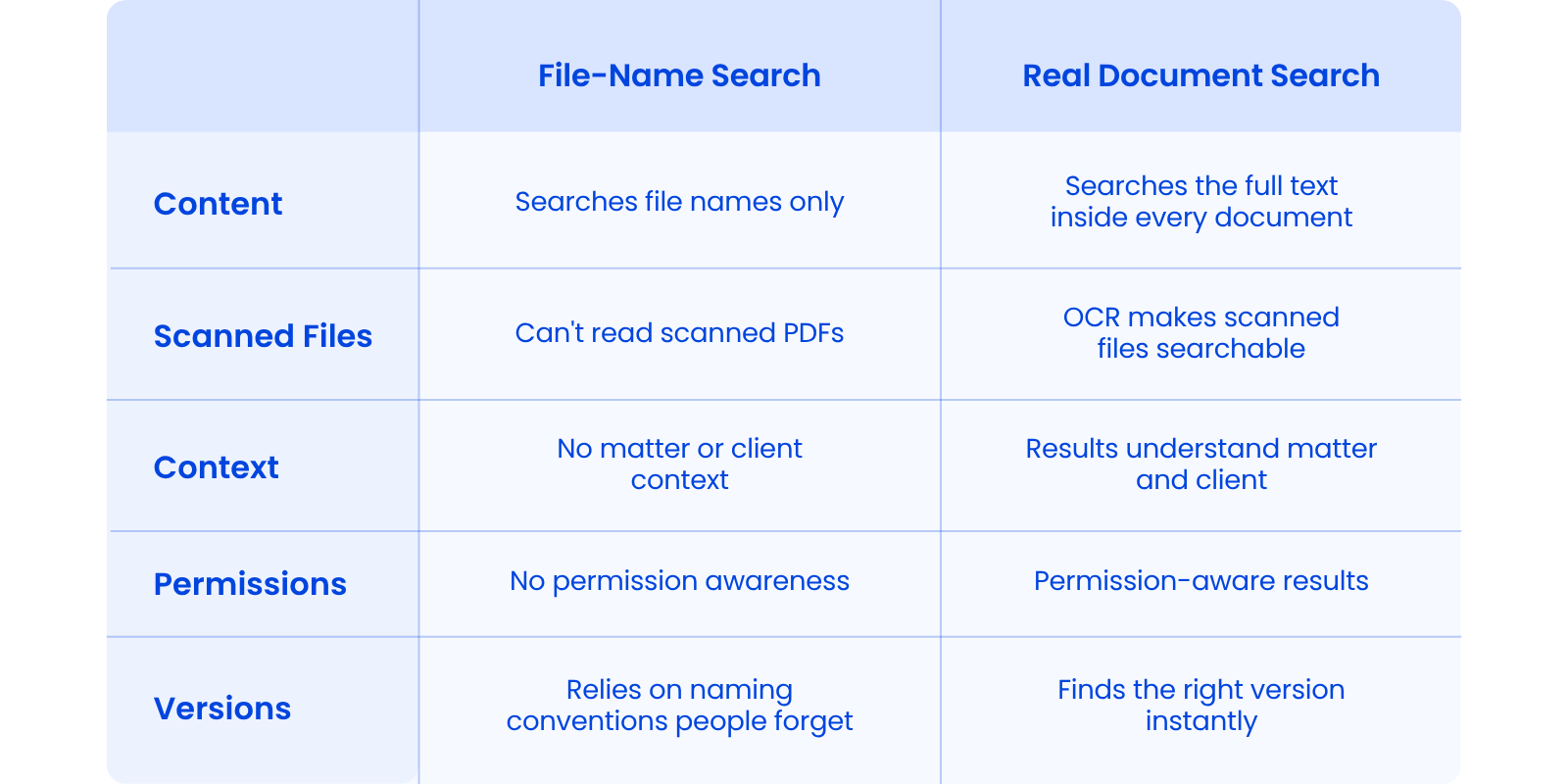
A shared drive or a generic cloud tool can search some file content, but it has no understanding of matters, versions, or who’s allowed to see what, which is why search breaks down as your firm grows. These tools are fine for storing files, but they fall short the moment you need to find one reliably.
Here’s where consumer-grade storage breaks down for a firm:
The tell that a firm has outgrown its tools is almost always the file name. When the name is the only place to record what a document is, people start stuffing details into it (client, matter, type, version) because there’s nowhere else to put them. The frustrated version of this is the exclamation every overgrown system eventually produces: “everything’s a mess” or “I can’t find anything.”
DMS vs. Cloud Storage
Why consumer-grade cloud storage falls short of a real document management system for law firms.
What “Search” Means in Dropbox, Google Drive, and SharePoint vs. a Legal DMS
Consumer-grade tools can search some document content, but they treat every file the same: no matter context, no version awareness, no permission logic. A legal DMS reads document content and understands the matter it belongs to.
Dropbox can tell you there’s a file called “contract_v3.” A legal document system can tell you which contract mentions a specific clause, which matter it belongs to, and which version is current. That’s the difference between a filing cabinet with a label maker and a system built for how your firm actually works.
The Hidden Tax of File-Name Conventions and Duplicates
When the file name is the only place to store context, people invent naming rules they can’t follow consistently, and duplicate versions pile up until no one knows which file is current. That’s the problem document version history is built to solve. You end up with “Smith_contract_FINAL,” “Smith_contract_FINAL_v2,” and “Smith_contract_use_this_one”: three files, no way to know which is real without opening all of them. Multiply that across every matter and every user, and search stops being something you trust.
Why Document Search Matters: Time, Risk, and Client Service
Weak document search costs your firm in three concrete ways: billable time lost searching, errors from working off the wrong version, and the risk that comes when you can’t reliably find or control a client’s documents. None of these show up as a line item, which is exactly why they go unaddressed for years.
The pattern is that firms don’t notice the cost until it’s acute.
The Billable-Time Cost of Not Finding Things
Every minute an attorney or paralegal spends hunting for a document is time that either goes unbilled or comes out of the firm’s margin. A few minutes here and there feels harmless, but it’s happening across every person, every matter, every day. If five timekeepers each lose fifteen minutes a day to searching, that’s more than 300 billable hours a year your firm never recovers.
Version Errors, Deadlines, and Professional-Responsibility Exposure
Sending the wrong version, missing a document before a deadline, or being unable to locate a file can implicate a firm’s duties of competence, supervision, and confidentiality. The bar rules expect you to handle client information reliably, and “we couldn’t find it” is a hard position to defend. Reliable search is part of how your firm keeps its commitments to clients.
What Good Document Search Looks Like in a Legal DMS
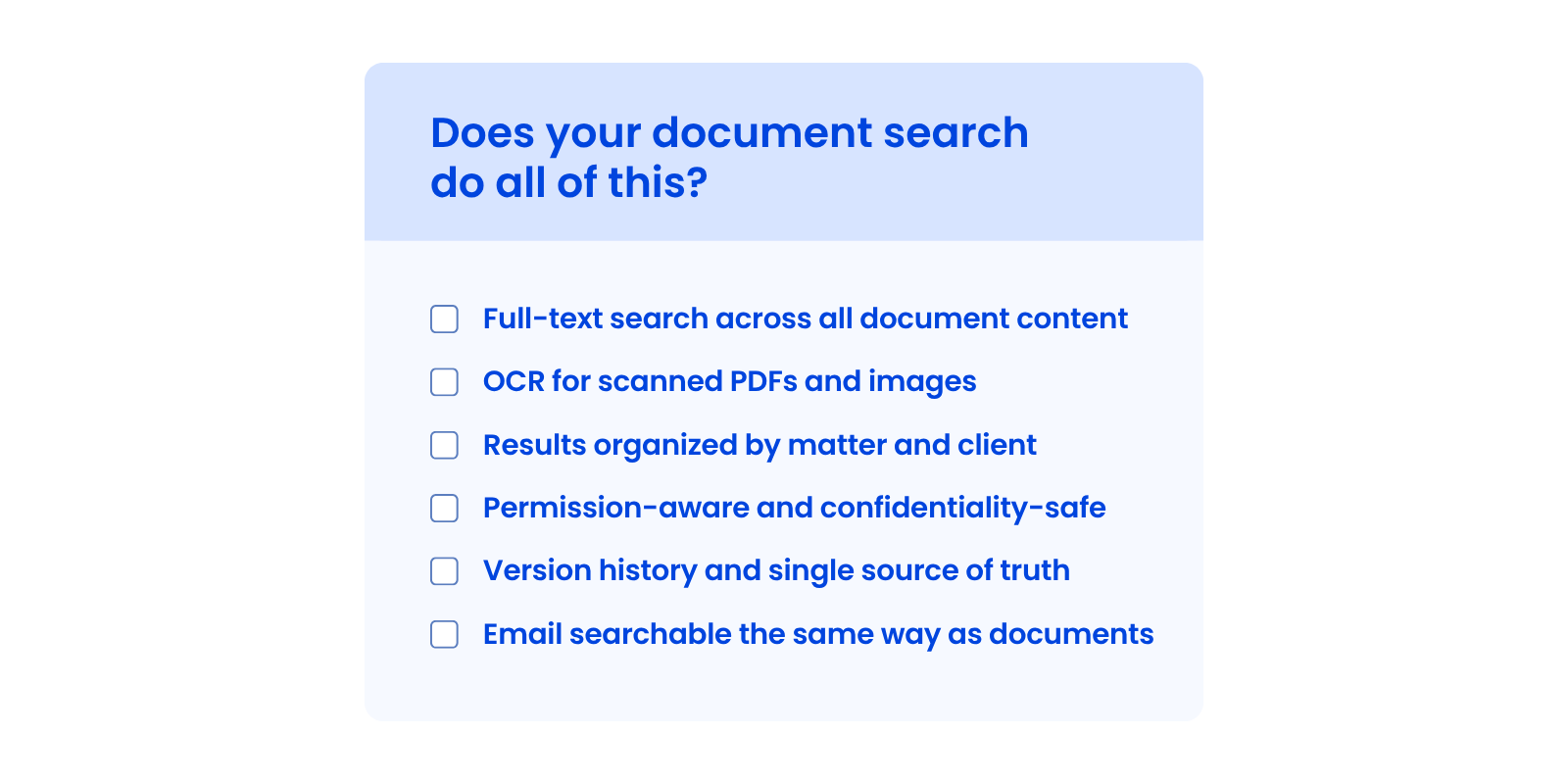
Good legal document search is fast even across thousands of files, reads document content (including scanned files via OCR), organizes results by matter and client, respects document permissions, tracks versions, and searches email alongside documents. These are the capabilities that separate a real document system from a search box, and you can check for each one in a demo.
A Checklist for Evaluating Document Search
A few specific capabilities separate real document search from a basic search box, and you can hold any system against them. Use these as questions when you evaluate any option:
If a system can’t check all six, you’ll feel the gaps within your first month.
Where LexWorkplace Fits
LexWorkplace is built around matter-centric, full-text, OCR-powered search with version history and email search, which is what the checklist above describes. It was designed for the way firms actually file and find documents, so the context lives in the system instead of in your file names. If you’re evaluating options, it’s a useful benchmark for what “good” should include.
Search Is the Test of a Real Document System
If you can’t find a document in seconds, your system is only doing half the job. Real search (full-text, OCR, and matter-aware) is what turns a pile of files into something your firm can actually use, so the right version surfaces every time.
Firms that fix this stop losing time to the hunt, stop second-guessing which version is current, and put that energy into the work clients pay for.
When you evaluate your next system, start with search. Everything gets easier once you can find what you need.
WHAT’S NEXT