Table of Contents
If your firm already pays for Microsoft 365, SharePoint came with it. Several people can co-author the same Word document at once, and it adds nothing to your license bill. Those are real advantages, and they’re why SharePoint for law firms is such a common starting point.
Firms we talk to raise the same question once the folders fill up: the storage we have seems fine, so what would a legal DMS add?
The answer is structure. Law firm document management software organizes every file and email around the client and matter it belongs to. SharePoint on its own holds up for a solo or a handful of people with a few dozen matters, and past that you can build it to work the same way, as long as someone does the build and keeps it running.
This guide lays out what that build takes, who maintains it, and which of three routes fits your firm.
What Is SharePoint, and How Do Law Firms Use It?
SharePoint is Microsoft’s content management and collaboration platform, bundled into Microsoft 365, and most law firms first encounter it as a place to store files rather than a dedicated legal tool. It’s been around since 2001, long enough to become the default hub that OneDrive, Teams, and Word all connect to inside Microsoft 365.
Your firm can create Libraries, SharePoint’s version of folders, organized by client, matter, practice area, or however else makes sense for your work.
You can upload documents through OneDrive straight into a SharePoint library or create new ones from inside SharePoint in Word or Excel, which is why setting up Microsoft 365 for law firms usually makes SharePoint the firm’s default file store.
What Is Basic Cloud Storage?
Basic cloud storage works like an online filing cabinet, a place to store and reach your files from anywhere. Dropbox, OneDrive, and Google Drive all fall into this category alongside SharePoint.
Cloud storage splits into two categories: basic cloud storage and document management systems. That document management vs. cloud storage split is what decides whether SharePoint alone is enough for your firm.
Basic storage strains once your matter volume grows, because managing documents takes matter structure, email management and file profiling (tagging each file with its client, matter and document type), which a document management system adds. On its own, SharePoint sits in the basic cloud storage category, though your firm can build it toward a DMS, as the rest of this guide shows.
Can SharePoint Be Our DMS If We Already Pay for Microsoft 365?
Not on its own. SharePoint gives a Microsoft 365 firm co-authoring, version history and full-text search at no extra license cost. What SharePoint lacks is a client and matter structure, built-in email filing to a matter, and optical character recognition (OCR) in the base license, so your firm builds or buys those before SharePoint runs matters like a legal DMS.
SharePoint handles
What it doesn’t do
How Is SharePoint Different from OneDrive?
SharePoint is where your firm’s shared files live, and OneDrive is where each person keeps their own. Both sit inside the same Microsoft 365 plan.
SharePoint holds the documents the whole team needs, subject to permissions. Co-authoring works in both, so moving a draft from OneDrive into a SharePoint library doesn’t change how your team edits it.
What Are the Real Benefits of SharePoint for Law Firms?
SharePoint gives a firm on Microsoft 365 real-time co-authoring in Word and PowerPoint, version history on every file, full-text search, controlled external sharing and Mac support, all included in the business plans it already pays for. Each one is documented by Microsoft:
For live co-drafting, SharePoint is the stronger tool, and for a firm already paying for Microsoft 365 it costs nothing extra in licenses. LexWorkplace has no real-time co-editing: one person edits a document at a time, so firms that draft together live keep Microsoft 365 co-authoring for that stage.
LexWorkplace instead locks a document while someone has it open and lets a user check a document out, the control your firm wants on a final agreement or a filing.
If you’re still trying to scale a law firm on an S drive, moving to the cloud removes the server hardware and the virtual private network (VPN) your team needs to reach it.
How Much Does SharePoint Cost a Law Firm?
SharePoint comes with Microsoft 365 Business Basic at $7.00 per user per month paid yearly, and with Business Standard and Business Premium, which Microsoft sells with Copilot. Business Standard runs $23.50 and Business Premium $32.00 per user per month.
Microsoft stopped selling standalone SharePoint Plan 1 and Plan 2 to new customers after May 31, 2026, and existing customers can renew only until January 2027, so SharePoint now comes through a Microsoft 365 plan.
The license price leaves out three costs that come with running matters on SharePoint:
Those three, more than the license fee, decide what SharePoint costs your firm.
What Does It Take to Set Up SharePoint as a Law Firm DMS?
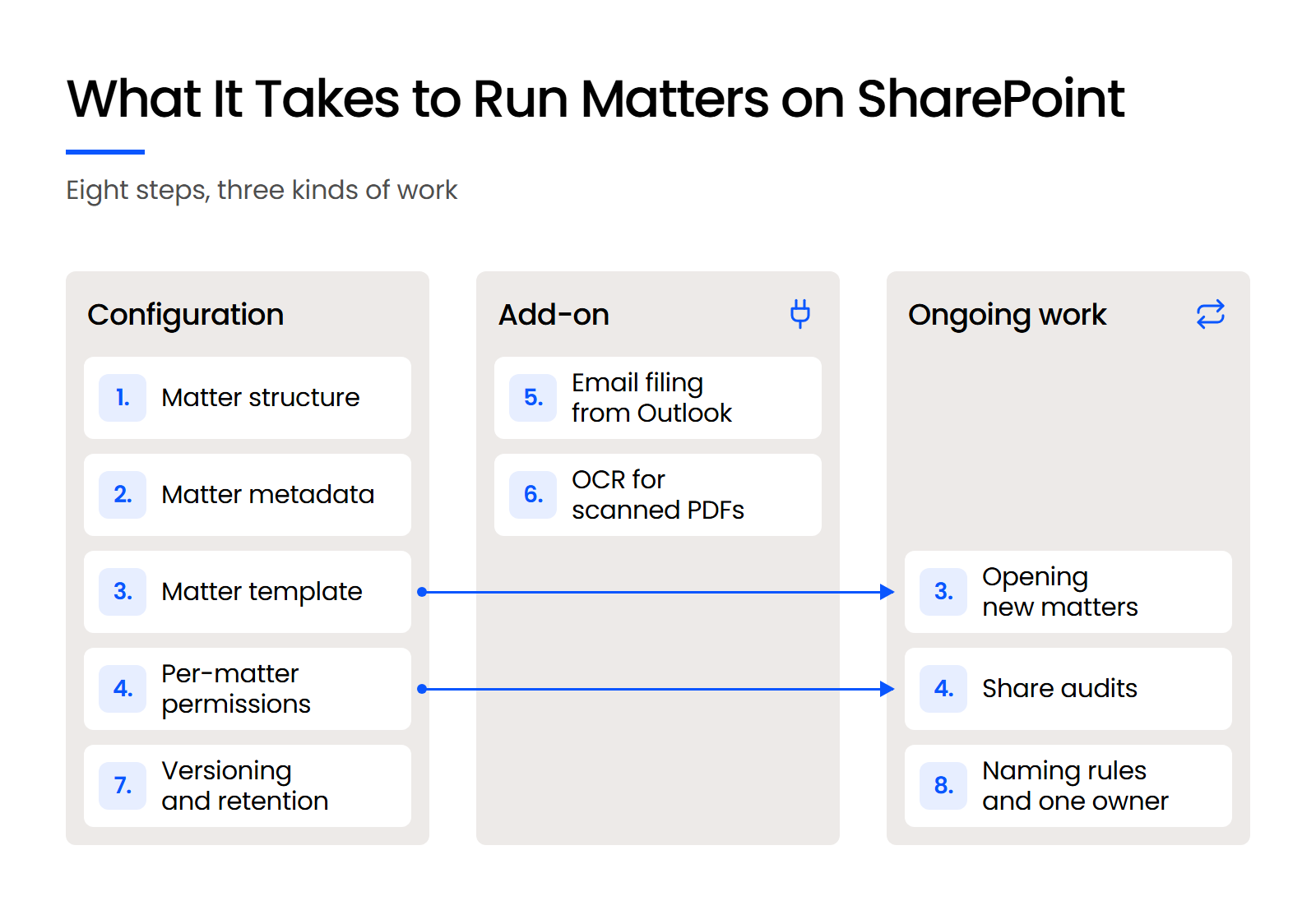
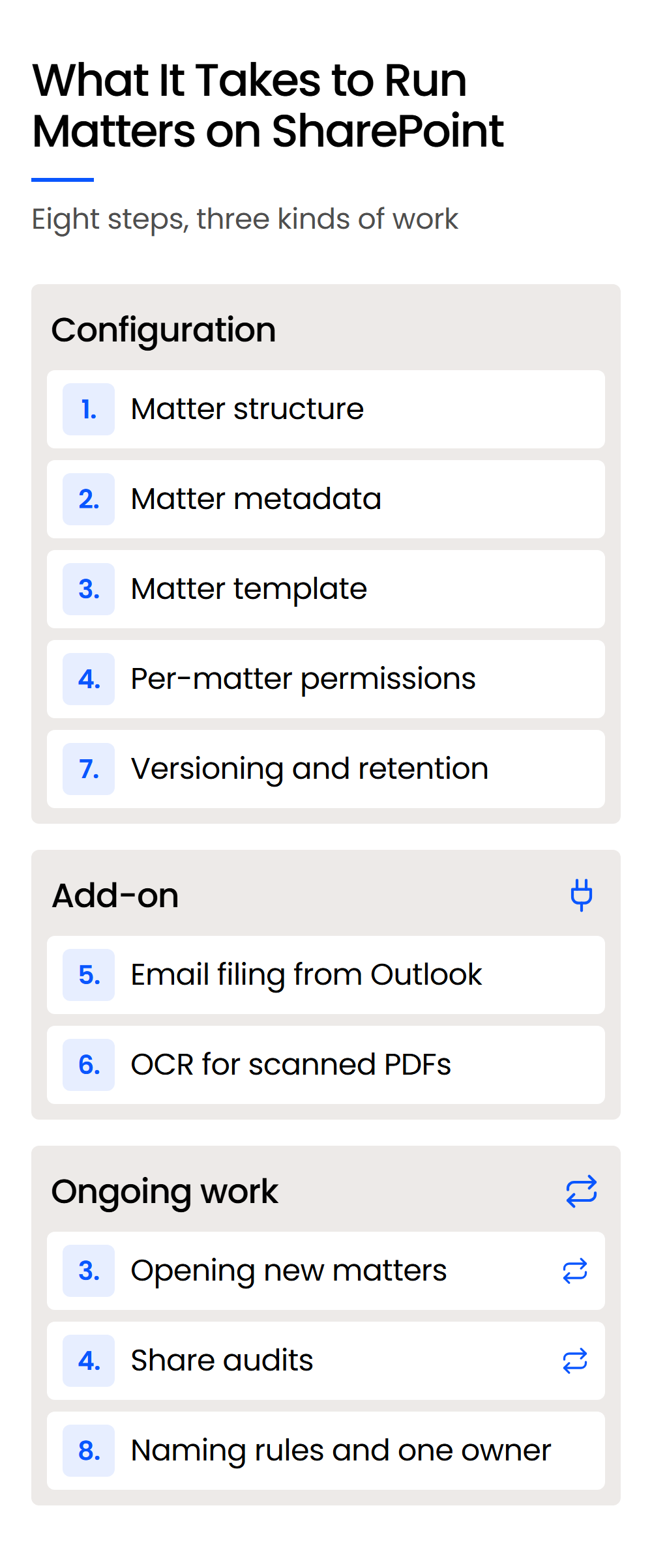
SharePoint can run matters like a law firm DMS once you build eight things into it, and three of them are jobs someone at your firm keeps doing for as long as you use it. This is the list a managing partner can hand to IT.
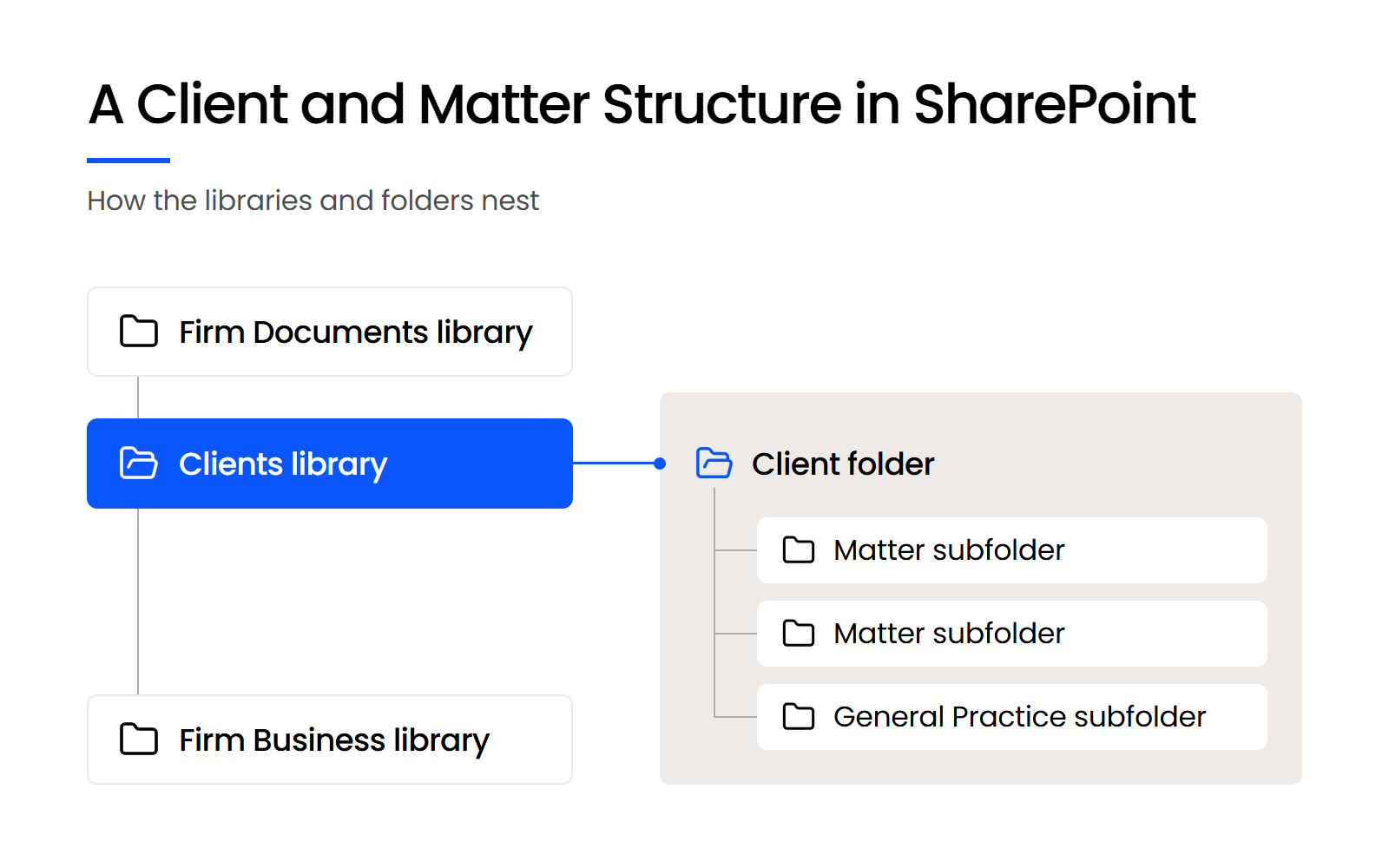
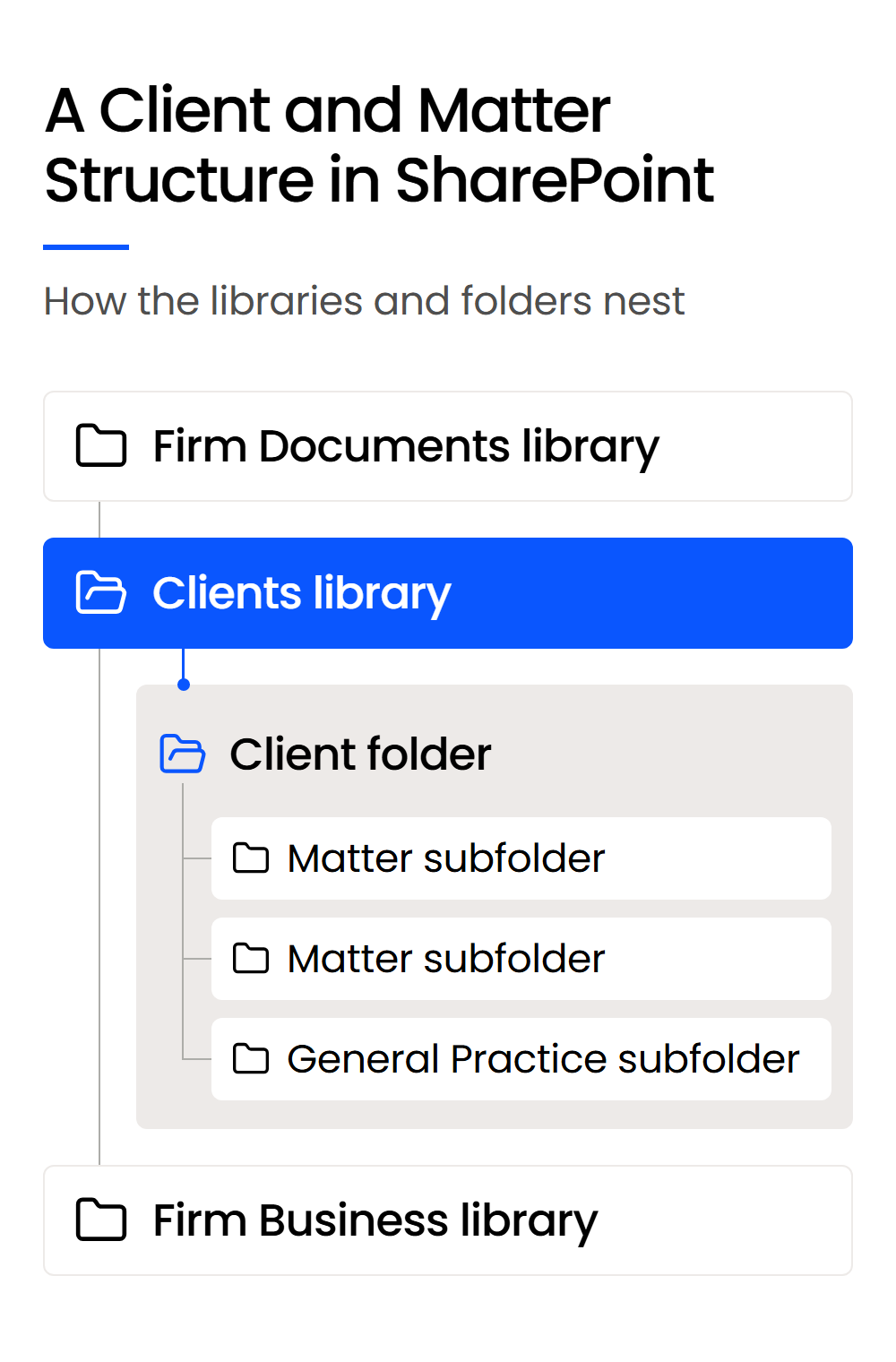
Step 1 sets the structure the diagram shows, and every later step builds on it.
- 1
Configuration: Decide the matter structure. Create a “Firm Documents” library, a “Clients” or “Matters” library with one folder per client and a subfolder for each matter, a “General Practice” folder for a client’s ongoing work, and a library for firm business documents. Use Microsoft 365 Groups to set who can reach what.
- 2
Configuration: Add metadata so search can filter by matter. Use content types or managed metadata for client, matter and document type. SharePoint has no client or matter object, so matter-scoped search means adding those columns yourself, at which point your firm is building its own DMS. Until then, a signed engagement letter for a named matter is a hunt in SharePoint and a quick document search in a legal DMS.
- 3
Configuration, then ongoing work: Create a matter template and one way to open new matters. Build a template with the standard folders and metadata, and decide who opens new matters and how. The template is configuration; making sure everyone uses it is ongoing work.
- 4
Configuration, then ongoing work: Set permissions per matter. Give each matter access only to the people who work on it, restrict sensitive matters further, and audit external shares on a schedule. Treat it as good practice, and revisit it as people join, leave or change matters.
- 5
Add-on: Set up email filing from Outlook. SharePoint has no built-in way to file email to a client or matter, so this step takes Power Automate or a third-party add-in. Firms that skip it save messages as .msg files, which show nothing until opened, or print important email to PDF, leaving email management for law firms to whoever remembers to do it.
- 6
Add-on: Turn on OCR for scanned PDFs. Scanned pleadings and signed agreements aren’t searchable as text until OCR runs on them. In SharePoint that’s a pay-as-you-go service billed through Azure, outside the base license, so someone sets up the subscription and watches the bill.
- 7
Configuration: Configure versioning and retention settings. Version history is on for all file types, so your firm decides how many versions to keep and how long closed-matter files stay. Write those choices down so the next person who touches the settings knows why.
- 8
Ongoing work: Write naming rules and name one owner of the structure. Agree on how files get named, what gets saved where, and what can be discarded. One owner answers questions, fixes misfiled documents and keeps the conventions from drifting as people join and matters accumulate.
Microsoft doesn’t require a consultant for any of this, though it suggests considering a partner for deployment. Most of the list is a build someone has to do once and then keep doing: a moderate-to-high technical job that needs ongoing upkeep. Most small and mid-size firms don’t have IT staff for that, so the build is often done badly or stops being maintained.
Can Add-Ons and DMS Products Built on SharePoint Do the Build for You?
Between building everything by hand and leaving SharePoint, there’s a middle route: products that sit on top of SharePoint and do part of the build for you. They come in three kinds, each covering different steps from the list above.
Every option in this middle route still leaves something with your firm: part of the build, the ongoing maintenance, and license stacking, since you pay for Microsoft 365 licenses plus each add-on’s license.
This route fits your firm if it’s committed to Microsoft 365, wants co-authoring in place and has IT help to set up and maintain the layer. If nobody at your firm owns that work, an add-on moves the maintenance to a new place without removing it.
Where Does SharePoint Fall Short for Law Firms?
SharePoint falls short for law firms in five specific ways: it isn’t a true document management system, it gets harder to keep organized as matters grow, it has no built-in way to file email to a client or matter, it takes real setup time to match how firms organize work, and someone has to build and maintain it.
Microsoft 365 can be bought directly or through a partner, and Microsoft suggests considering a partner for deployment, though a consultant isn’t required. SharePoint is a solid product, and each limit maps to build-out steps your firm would be signing up for:
That last limit also explains why so many firms are on SharePoint at all.
Generalist IT providers recommend what they already know, across every client they support, whether that’s a law firm, a dental office, or a machine shop. A document management system built for law firms, such as LexWorkplace, supplies the matter structure, so nobody at your firm has to build and maintain it by hand.
Is SharePoint the Right Choice for My Law Firm?
Whether SharePoint is the right choice depends on your matter volume, how much email you file, and who will maintain the structure, more than on how many people your firm has. SharePoint on its own holds up for a solo or a handful of people with a few dozen matters, and as matters climb toward a hundred, your firm needs matter-centric organization.
The table stays at the level of routes, since the feature-by-feature comparison of LexWorkplace and SharePoint covers each capability.
If your firm fits the third row, moving sooner is easier, because every matter added to SharePoint is another set of folders to sort during the DMS migration.

What Is a Document Management System?
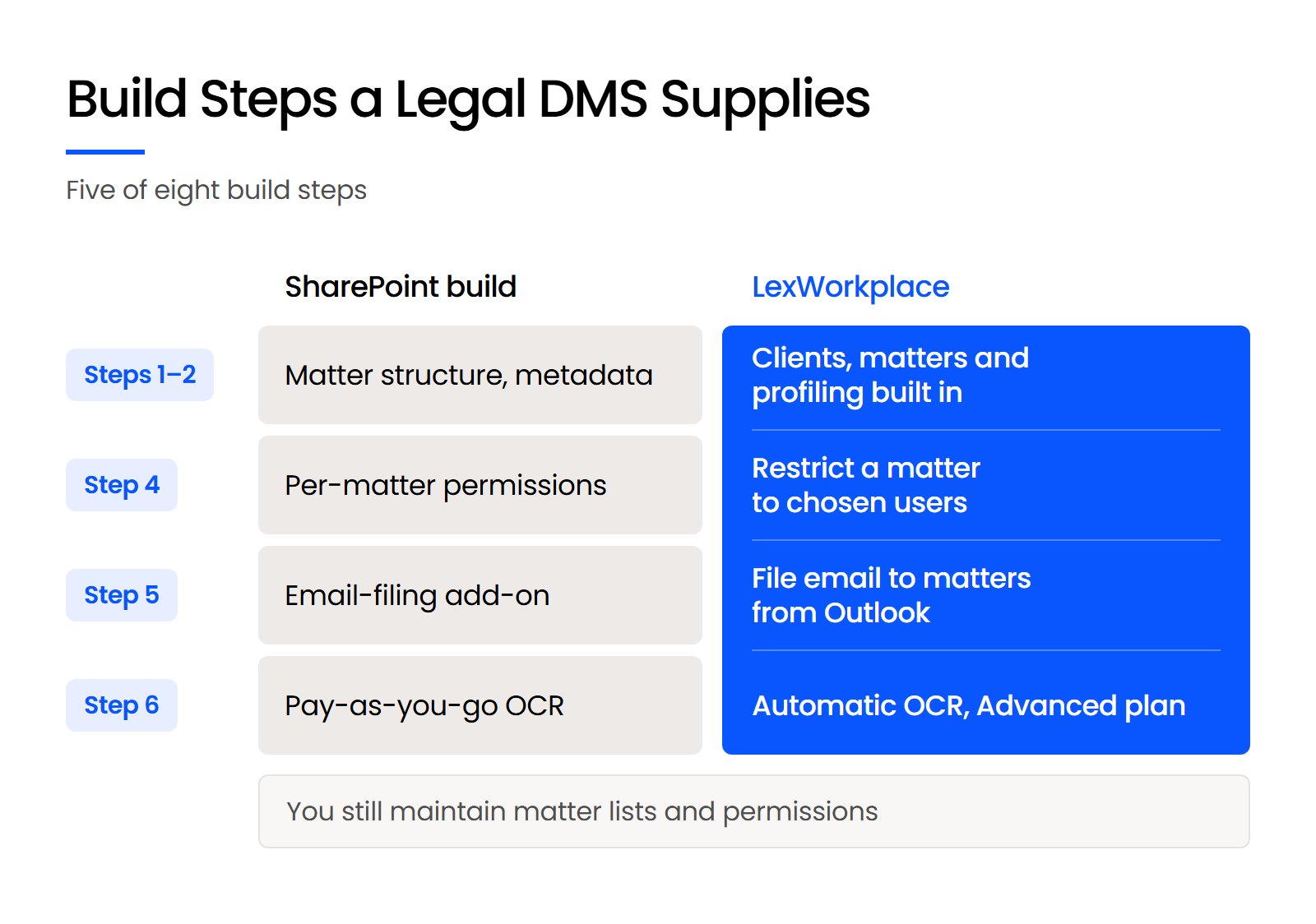
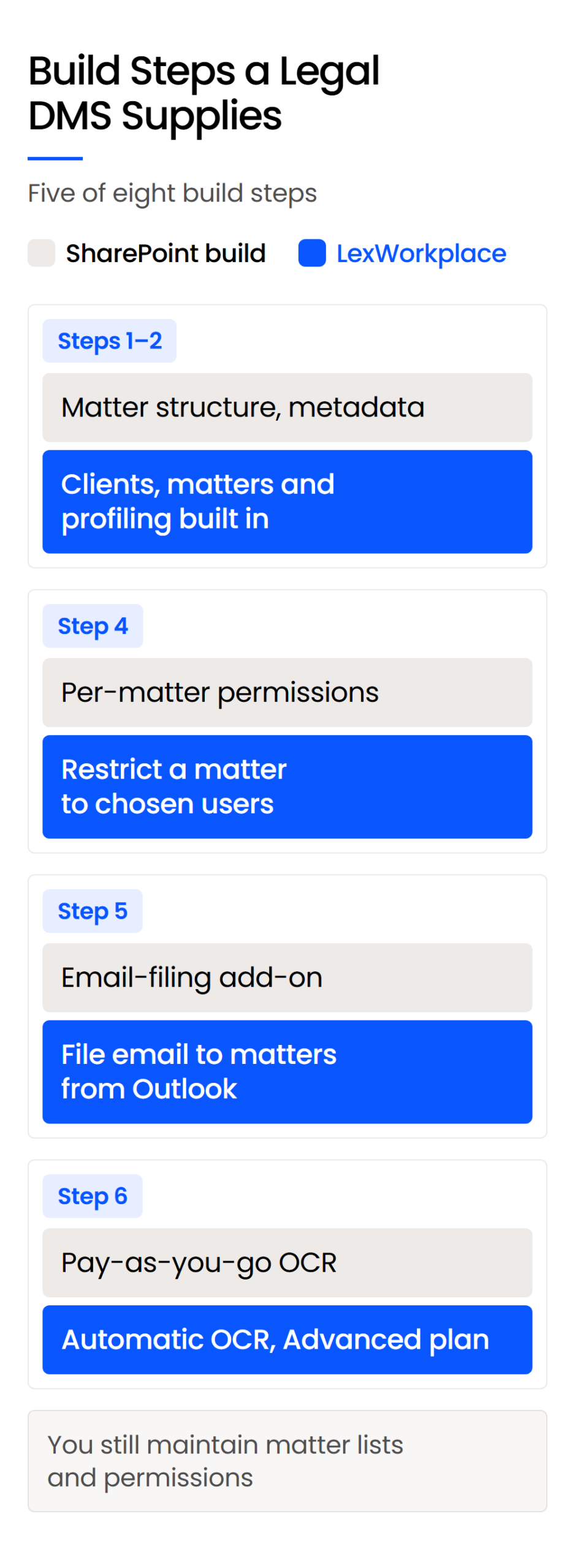
A document management system organizes every file around the client and matter it belongs to, instead of leaving that structure up to whoever saved it last. A legal DMS builds in the matter structure, profiling and email filing that SharePoint makes you add.
LexWorkplace is the legal DMS we build, so the examples below use it.
What Are the Benefits of a Document Management System?
The biggest difference from SharePoint is search scoped to a matter across documents and filed email, with no build first. A legal DMS also gives your firm:
We also answer the build-out’s hardest steps. LexWorkplace for Outlook and Email Smart-File file email to the matter from Outlook, and Smart-File learns which senders belong to which matter, with the user’s permission.
Default Matter Permissions and Rights Management set who sees each matter: new matters are open to the whole firm unless your Default Matter Permissions say otherwise, and Firm Admins always keep access. When you share outside the firm, external shares can be password-protected.
What Features Does a Document Management System Include?
A modern legal DMS bundles:
LexWorkplace AI works at three levels. Document AI, in every plan, answers questions about one document, and Matter AI works across a whole matter. Firm-wide LexWorkplace AI answers across every matter and Firm Documents with citations, and only sees what the user can access.

Legal DMS Features
A closer look at which features separate a legal document management system from basic file storage.
A legal DMS comes with a subscription, and that’s the number to weigh against the SharePoint build.
How Much Does a Legal DMS Cost?
LexWorkplace Core costs $395 per month for 3 users and 1,000 GB of storage, and Advanced costs $595 per month. Advanced adds Integrated OCR, the Litera Compare integration and Inline Document Compare, and Starter is free for Uptime Legal Manage and Cloud customers.
Onboarding is a one-time fee with three options: free for Uptime Legal Manage and Cloud customers, $1,495, or from $3,995 by quote.
Weigh the subscription and onboarding against everything the SharePoint route takes:
Estimate each of those SharePoint costs for your firm, then compare first-year totals, since legal document management software cost includes setup as well as the subscription.
Growth Is What Breaks SharePoint for Law Firms
SharePoint on its own holds up for a solo or a handful of people with a few dozen matters. As matters climb toward a hundred and as more people file, the strain shows, because the structure is only a convention.
At that point your firm has three routes: keep SharePoint and own its upkeep, add a layer on top and maintain the build, or move to a legal DMS that supplies the structure. If that last route fits, the LexWorkplace 7-day free trial gives you full feature access and sample data, with no credit card.
WHAT’S NEXT